How BusStop works?
BusStop is built to simplify repetitive API testing workflows. Instead of manually changing inputs, re-running requests, and checking responses one by one, BusStop helps you configure reusable test data, add built-in response validations, and execute test cases in bulk. The goal is to make API regression testing faster, more consistent, and easier to repeat during every release cycle.
Configure the Test Data
Once the API endpoint is configured, the next step is to add the test data that will be used during API test automation execution.
In BusStop, test data is organized as reusable datasets.You can keep all scenarios in one file or split them into multiple focused datasets.
For example:
- Empty field test data
- Invalid name test data
- Invalid date test data
- Boundary value test data
- Positive test data
- Regression test data
This makes it easier to execute only the required scenarios during testing cycles.
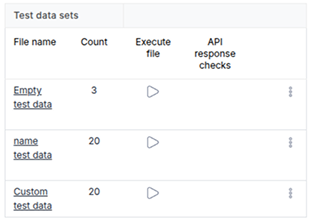
Option 1: Upload Test Data Using CSV
This is the recommended starting point for first-time users because it helps you understand how BusStop structures API test cases.
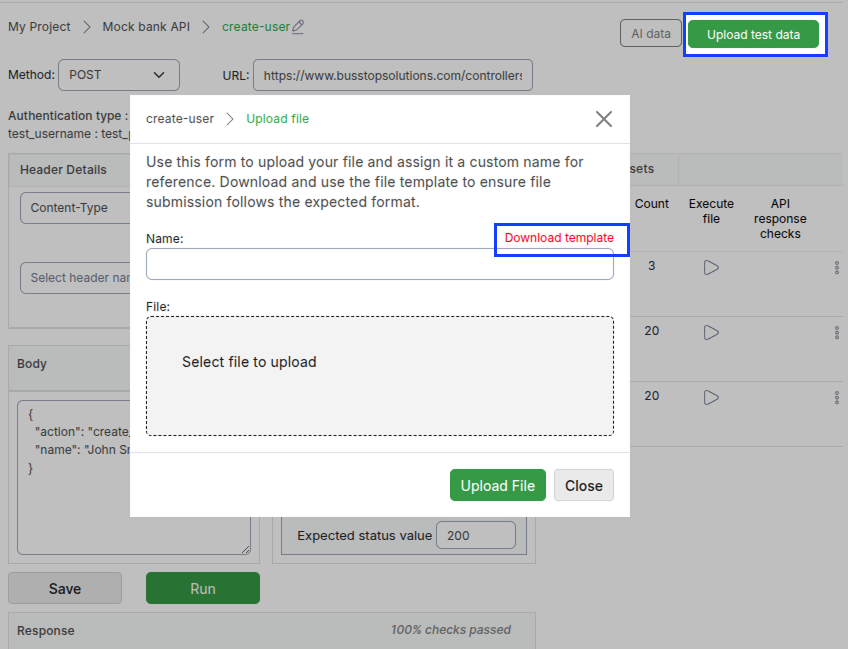
1. Click on Upload Test Data
BusStop opens a popup to guide you through the upload process.
2. Download the CSV Template
Each API endpoint has its own customized template.
The template is automatically generated based on:
- Enpoint URL,
- API request headers, and
- API request body
This removes the need to manually create columns.
3. Add Your Test Data
Fill the CSV file with your test cases.
Important:
- Each row represents one API test case
- if you add 5 rows = 5 executable test cases
- You can mix positive and negative scenarios in the same file
Example scenarios:
- Valid request
- Empty values
- Invalid formats
- Incorrect data types
- Boundary values
4. Add Expected Responses (Optional)
You can define the expected API response directly in the CSV.
BusStop uses this data later during execution to automatically verify the response.
If you do not have the expected response ready yet, you can leave it blank and configure it later.

5. Upload the File
Upload the completed CSV and click Submit.
BusStop automatically converts the rows into executable API test cases.
6. View Your Uploaded Test Data
The uploaded datasets become available inside the Test Data section.
You can access the data from setting (3-dot menu) -> View test data, and update the test data from setting -> Managa test data.
.png)
This allows testers to quickly review, update, or reuse datasets during regression cycles.
Option 2: Generate Test Data Using AI
BusStop can also generate API test data automatically using AI. This helps teams create broader coverage faster, especially during regression preparation or exploratory testing.
However, it is recommended to try a manual CSV upload first. It gives a better understanding of how the system structures test cases and validations.
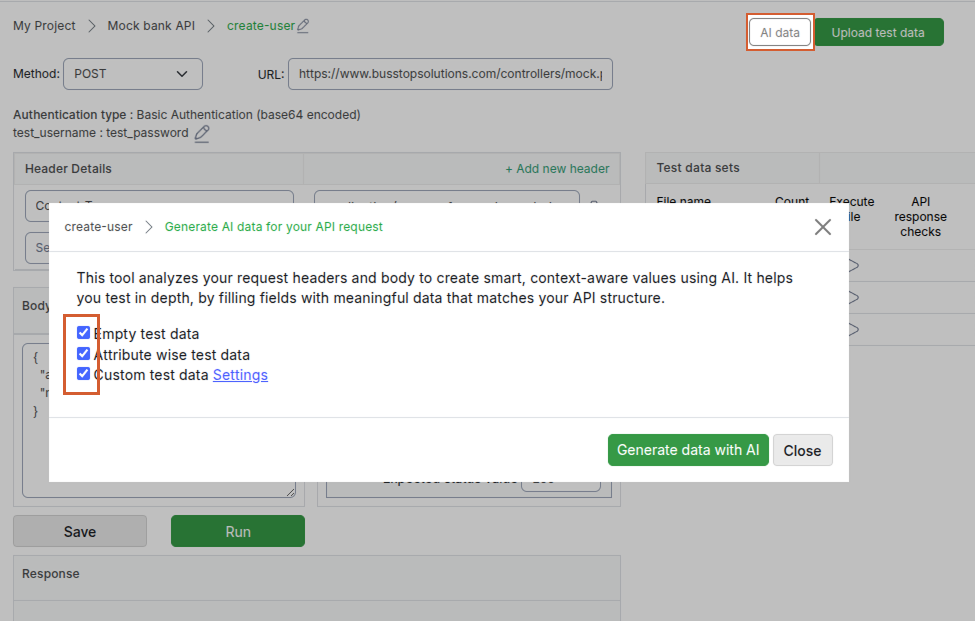
1. Click on 'AI data' button
BusStop opens a popup showing the available generation options.
2. Choose the type of test data set. By default all are selected.
You can generate different categories of API test data depending on your testing needs.
A. Empty Test Data
Creates scenarios where request body attributes are intentionally left blank or empty.
Useful for:
- Mandatory field validation
- Negative testing
- Error handling verification
B. Attribute-wise Test Data
BusStop generates positive and negative scenarios for individual attributes.
Example: If the request body contains:
- amount
- name
The system creates 2 datasets such as:
- Valid amount + invalid amount
- Valid name + invalid name
This helps testers quickly cover field-level validation scenarios.
C. Custom Test Data
This option gives more control over the generated data.
BusStop automatically detects the data type of each attribute. Click on the ‘settings’ and BusStop will show you the automatically detected configurations.
.png)
You can modify the detected types before generation.
Example:
- String
- Number
- Date
- Boolean
Based on the selected configuration, BusStop generates a combined dataset containing:
- Positive test cases
- Negative test cases
- Validation-focused scenarios
3. Generate the Test Data
Click on Generate Data with AI.
BusStop creates the datasets automatically and adds them to the Test Data Set section.
The generated data can then be:
- Reviewed
- Edited
- Reused
- Executed during regression cycles
Why This Matters
Most API testing delays happen because testers repeatedly create or reuse test data manually.
BusStop reduces that effort by helping teams:
- Organize regression datasets
- Reuse scenarios easily
- Generate negative test cases faster
- Improve API coverage
- Prepare regression runs quickly
Instead of repeatedly preparing inputs, testers can focus more on validating workflows and identifying issues.
 Configure test data for an API endpoint
 Run and re-run your test cases in bulk
Like what you read?
Be updated with feature updates, promotional offers, latest content and more from BusStop - API Automation testing tool.